Mission
Let us try to identify different objects with our GoogleNet image idenfitication system.
For this mission, you will be tasked to see the image identification system work on different pictures. We will work with the with the image identification program directly from our jupyter notebook, hence we will not be using our shell programs.
Open the gogolenet_mission python notebook:
1.googlenet_mission.ipynb
- Running the cell codeCtrl + Enter
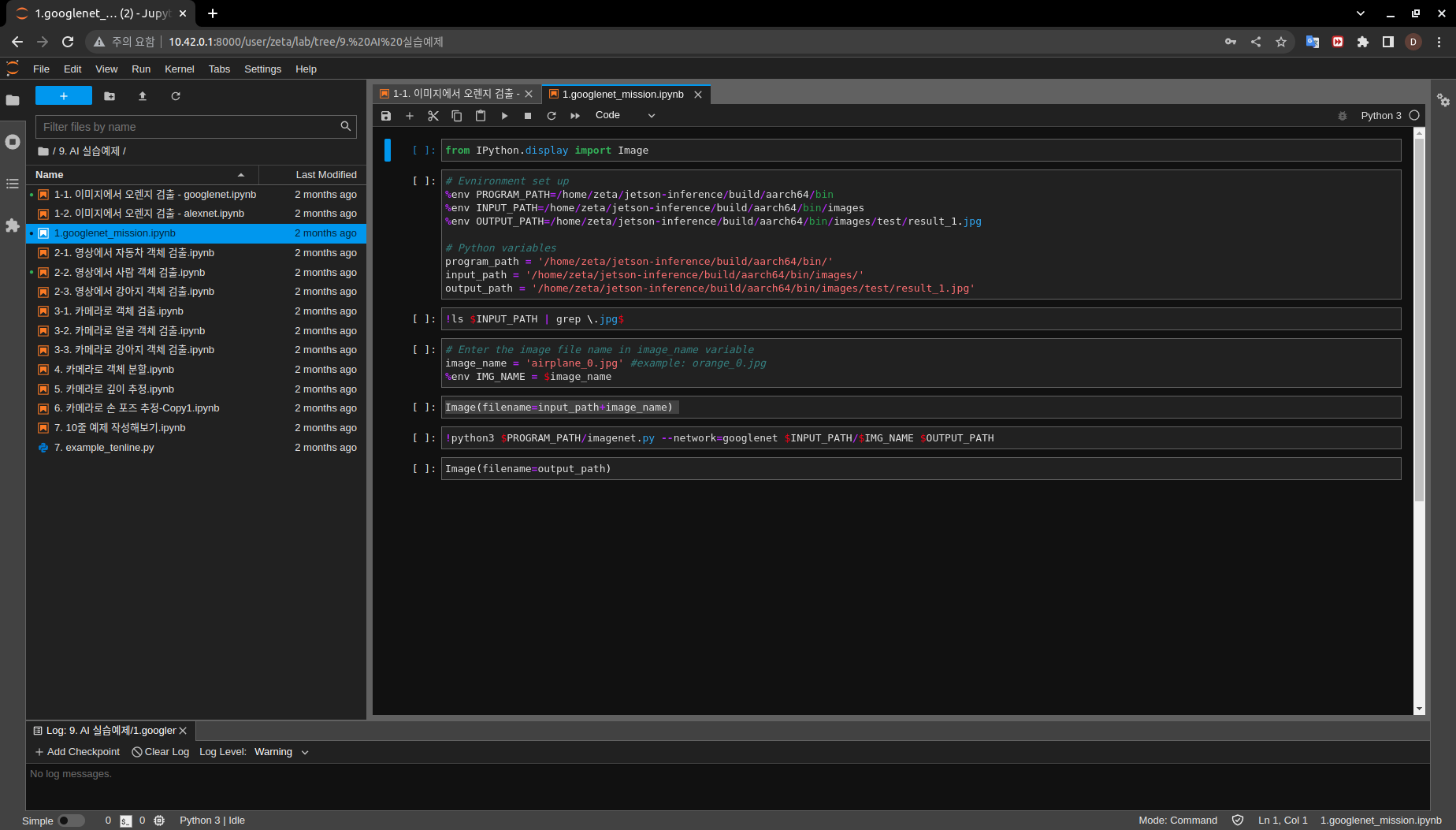
This mission will use python library called
Image. This allows us to view images within our jupyter notebook environment.from IPython.display import Image
For our jupyter notebook to run, we must set up correct file paths.
# Evnironment variables
%env PROGRAM_PATH=/home/zeta/jetson-inference/build/aarch64/bin
%env INPUT_PATH=/home/zeta/jetson-inference/build/aarch64/bin/images
%env OUTPUT_PATH=/home/zeta/jetson-inference/build/aarch64/bin/images/test/result_1.jpg

# Python variables
program_path = '/home/zeta/jetson-inference/build/aarch64/bin/'
input_path = '/home/zeta/jetson-inference/build/aarch64/bin/images/'
output_path = '/home/zeta/jetson-inference/build/aarch64/bin/images/test/result_1.jpg'
Check all the available images in our system
!ls $INPUT_PATH | grep \.jpg$
Choose one of them and change CHANGEME string with the chosen picture name.
# Enter the image file name in image_name variable
image_name = 'CHANGEME' #example: orange_0.jpg
%env IMG_NAME = $image_name
Check if the chosen picture is valid
Image(filename=input_path+image_name)
Run the program on the specified picture
!python3 $PROGRAM_PATH/imagenet.py --network=googlenet $INPUT_PATH/$IMG_NAME $OUTPUT_PATH
Display the result
Image(filename=output_path)